Happy Robots for GoodHelp

API Setup Guides

Step-by-step instructions to connect your ad platforms for automated reporting. We only request read permissions—we cannot modify your data.

Connect Your Store

Link your Shopify store to enable sales and product reporting.

5-10 minutes

Connect Your Ads

Link your ad accounts for campaign performance data.

10-15 minutes

Install Reporting Bot

Add our bot to receive daily reports and alerts in Slack.

5-10 minutes
Shopify

Shopify API Setup

Create a custom app that allows us to read your store data for automated reporting.

What This Does

Creates a custom Shopify app with READ-only permissions. We can view products, orders, and customers—but we cannot modify anything in your store.

Quick Path Settings → Apps → Develop apps → Create an app → Configure scopes → Install → Copy token

1 Create a Custom App

  1. Go to your Shopify admin: https://[your-store].myshopify.com/admin
  2. Click Settings (gear icon, bottom-left)
  3. Click AppsDevelop apps
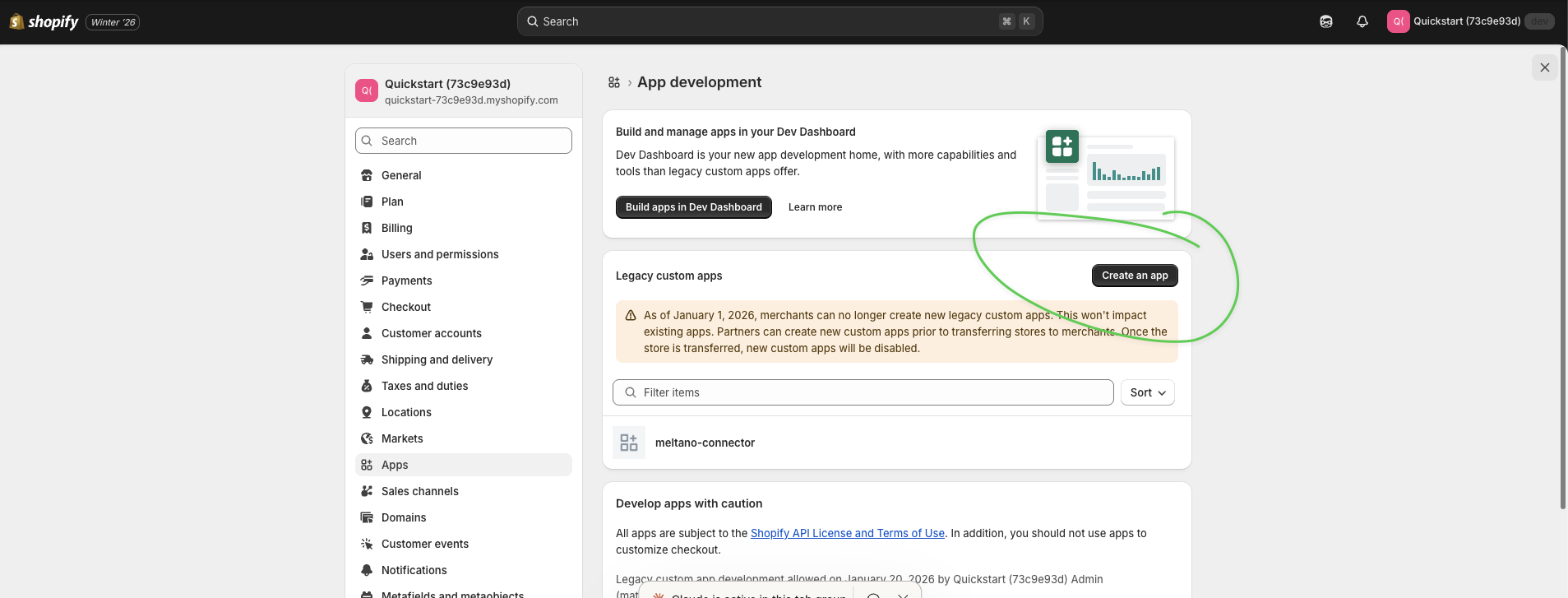
  4. Click Create an app button
  5. Name it: GoodHelp Reporting
Click Create an app button
Click the "Create an app" button

2 Configure API Scopes

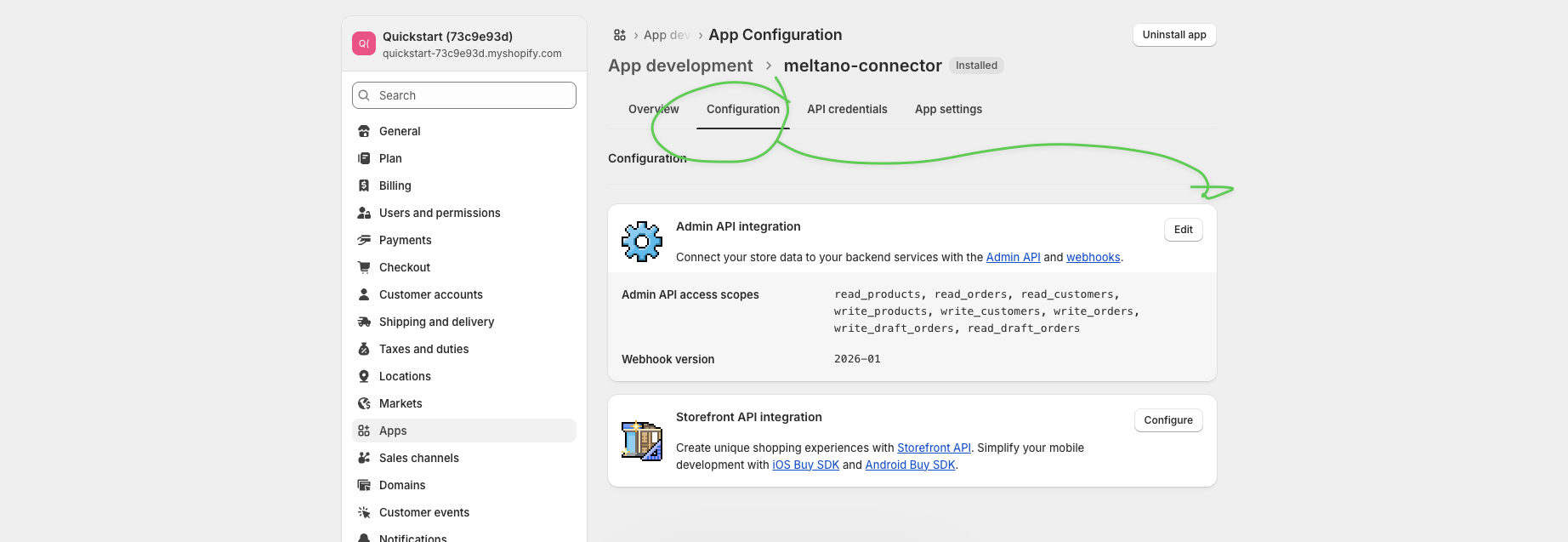
  1. After creating the app, click the Configuration tab
  2. Click the Edit button next to Admin API integration
  3. Check these scopes:
    • read_orders
    • read_products
    • read_customers
  4. Click Save
Configuration tab and Edit button
Click the Configuration tab, then click Edit to select API scopes

3 Install the App

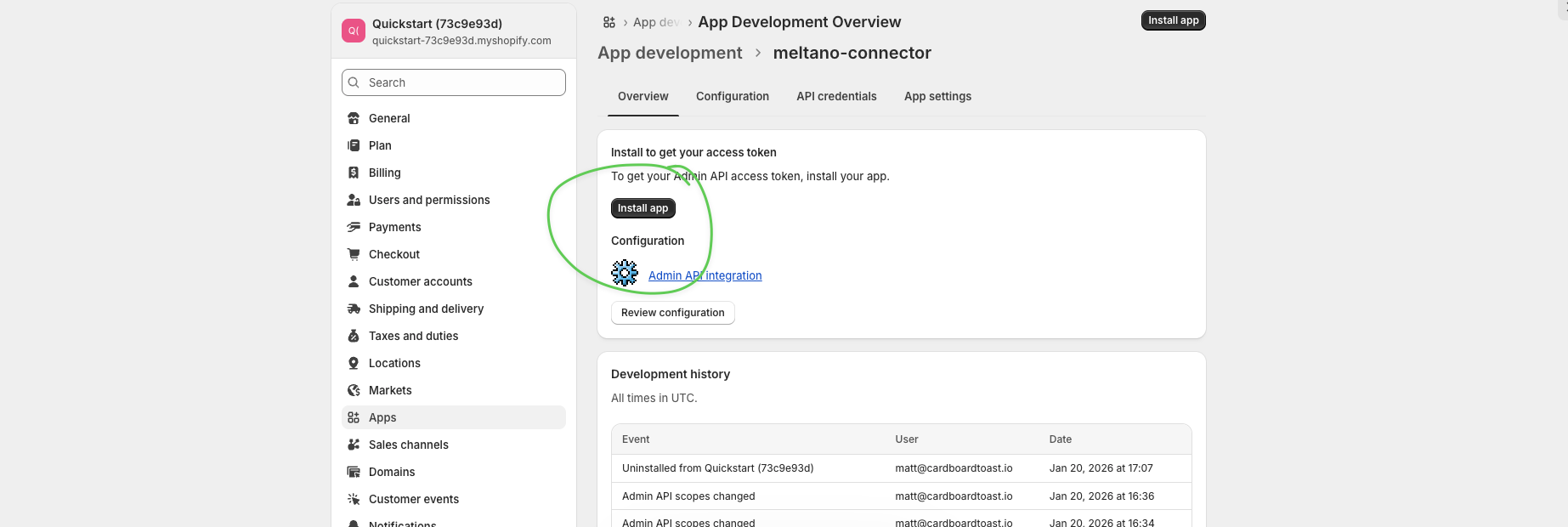
  1. Go back to the Overview tab
  2. Click the Install app button
Install app button
Click "Install app" to install the app on your store
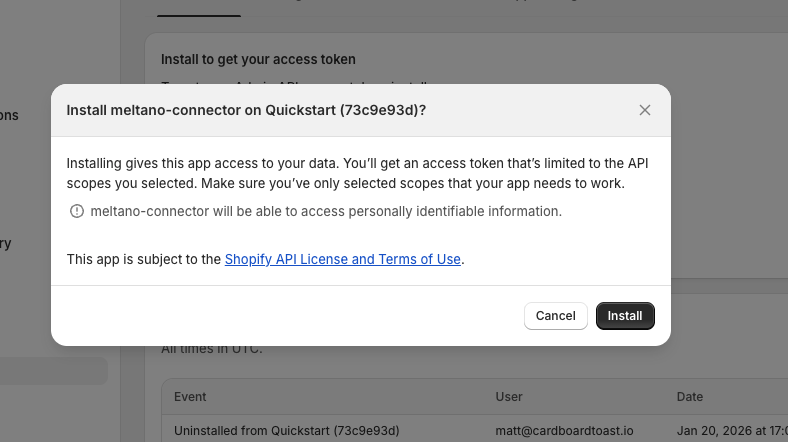
  1. In the confirmation dialog, click Install
Confirm installation dialog
Click "Install" to confirm

4 Get Your Access Token

Critical

The token is only shown ONCE. Have a secure place ready to paste it before clicking reveal.
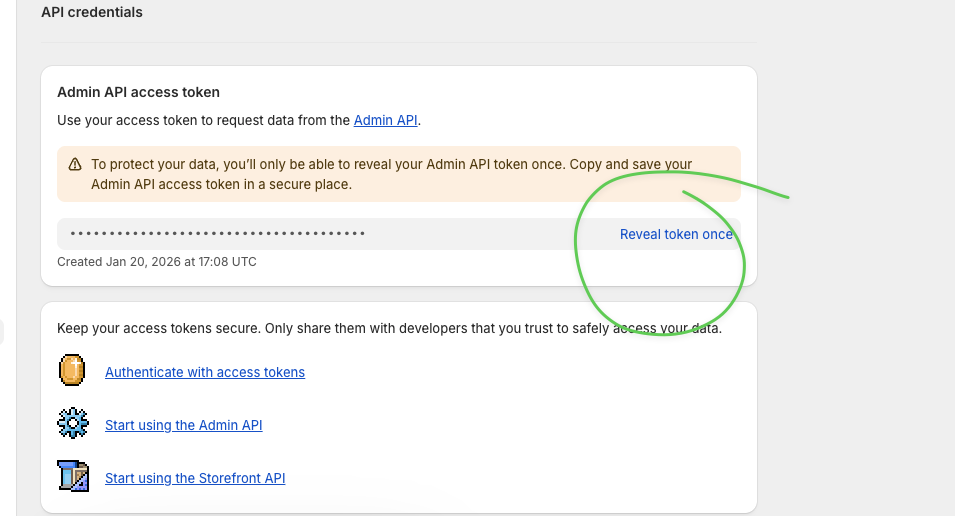
  1. After installing, you'll see "Reveal token once"—click it
Reveal token once button
Click "Reveal token once"—you only get one chance
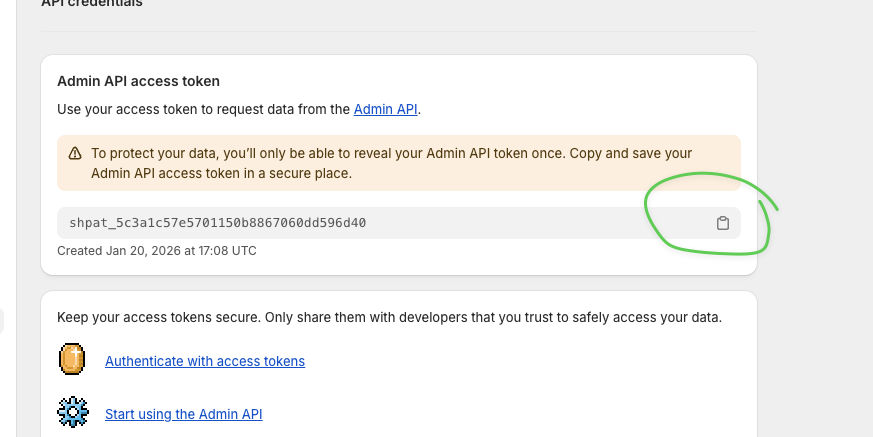
  1. Copy the token immediately using the copy button
Copy the token
Copy the token (starts with shpat_) and save it securely
Lost Your Token?

If you forgot to copy it, you'll need to uninstall and reinstall the app to generate a new one.

5 Send Us Your Credentials

What We Need Where to Find It Example
Store URL Your browser URL bar my-store.myshopify.com
Access Token From Step 4 above shpat_5c3a1c57e5701...
Meta / Facebook

Meta Ads API Setup

Create a Meta app and System User to read your ad account performance data.

What This Does

Creates a Meta app and System User with READ-only permissions. We can view campaigns, ad sets, ads, and performance metrics—but we cannot modify your ad accounts.
Quick Path Business Settings → Apps → Create App → App Settings → System Users → Assign Assets → Generate Token

1 Go to Business Settings

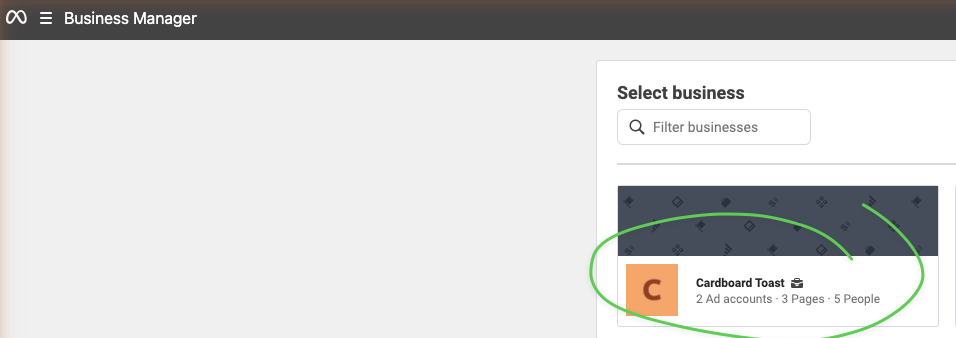
  1. Go to business.facebook.com
  2. Select your Business Account from the dropdown
Select business account
Select your business account
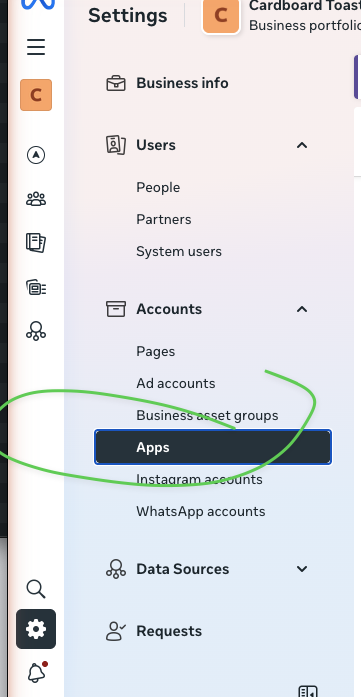
  1. Click the Settings gear icon
  2. In the left sidebar under Accounts, click Apps
Select Apps in sidebar
Navigate to Apps in Business Settings

2 Create a New App

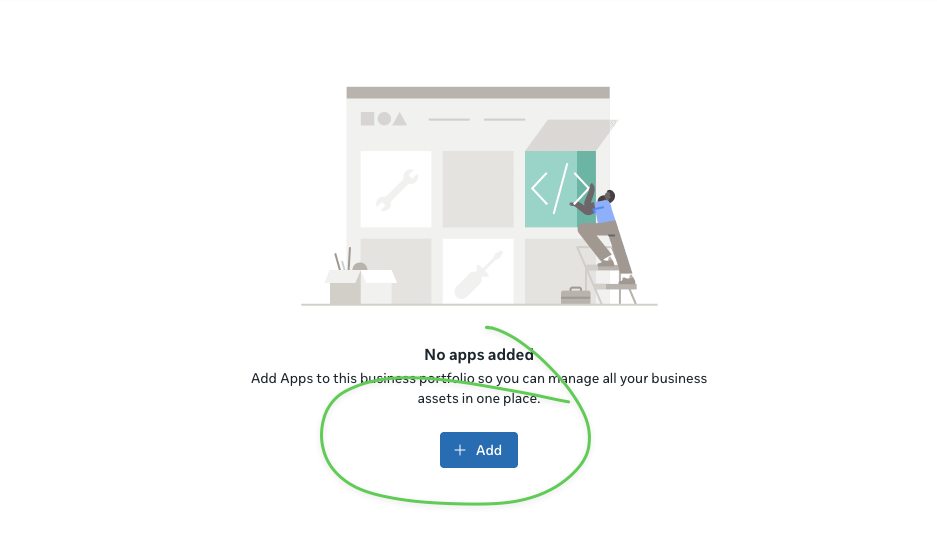
  1. Click the + Add button
Click Add button
Click "+ Add" to add a new app
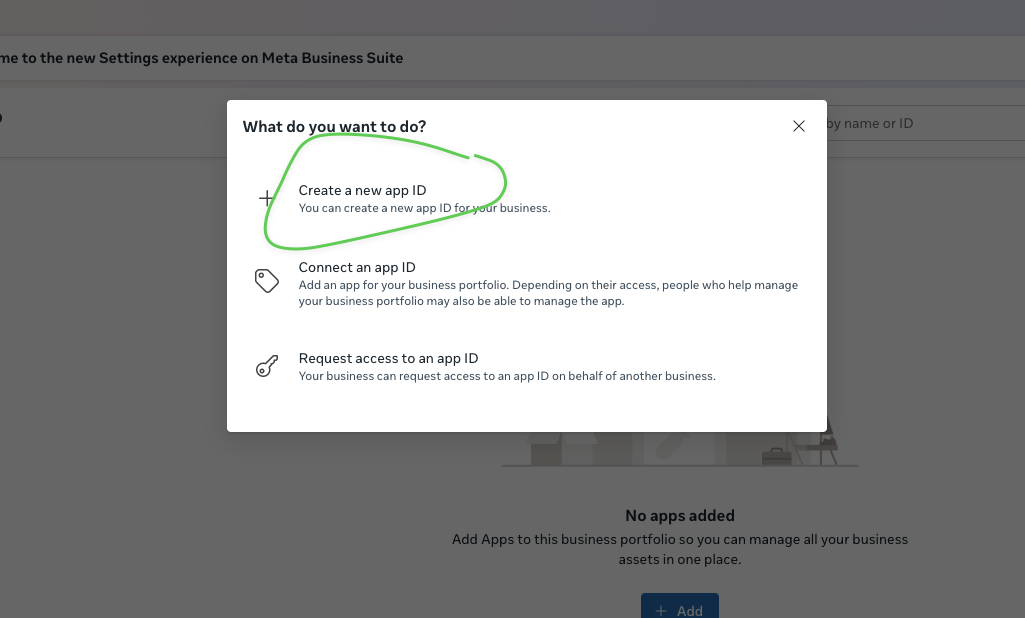
  1. Select "Create a new app ID"
Create new app ID
Select "Create a new app ID"
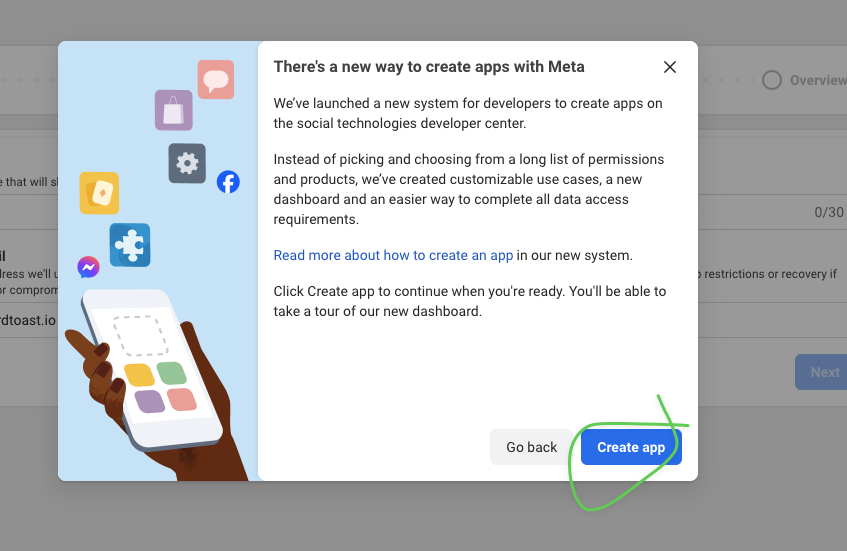
  1. Click Create app in the dialog
Create app dialog
Click "Create app" to continue

3 Configure App Details

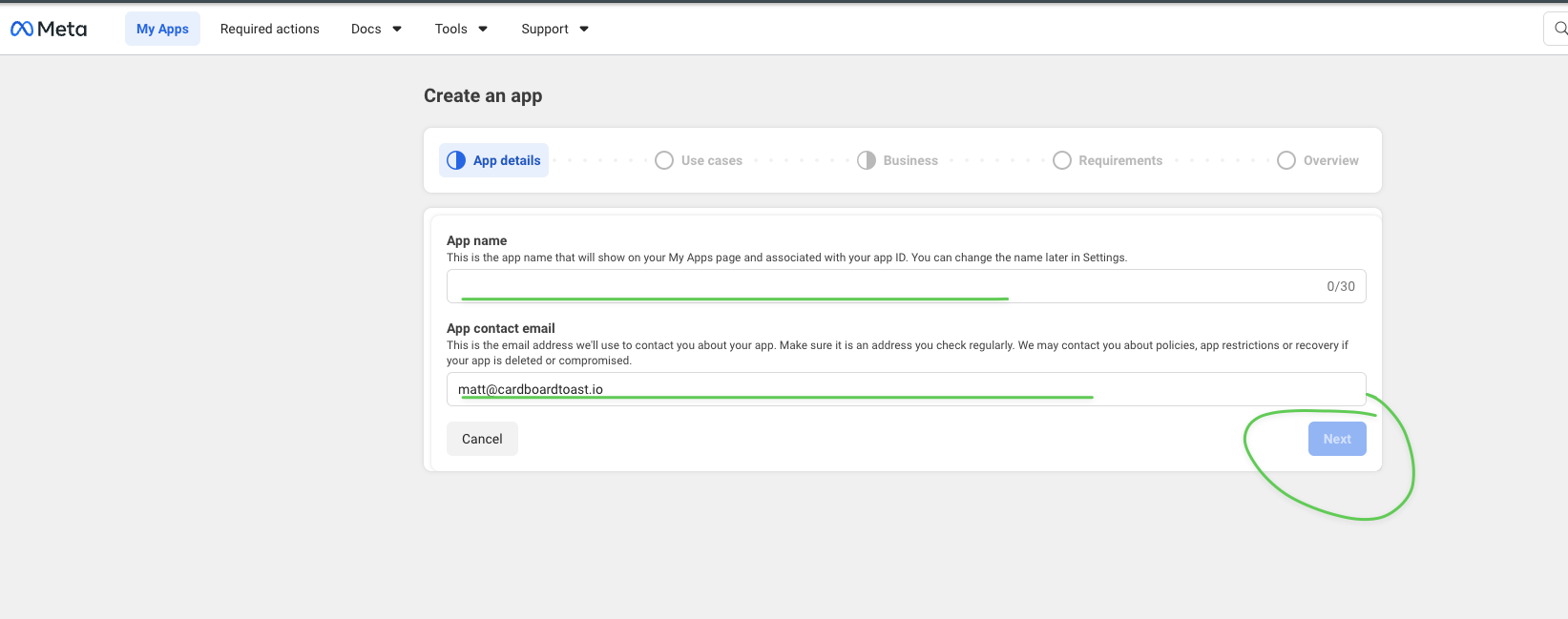
  1. Enter app name: GoodHelp Reporting
  2. Enter your contact email
  3. Click Next
App details form
Enter app name and contact email, then click Next
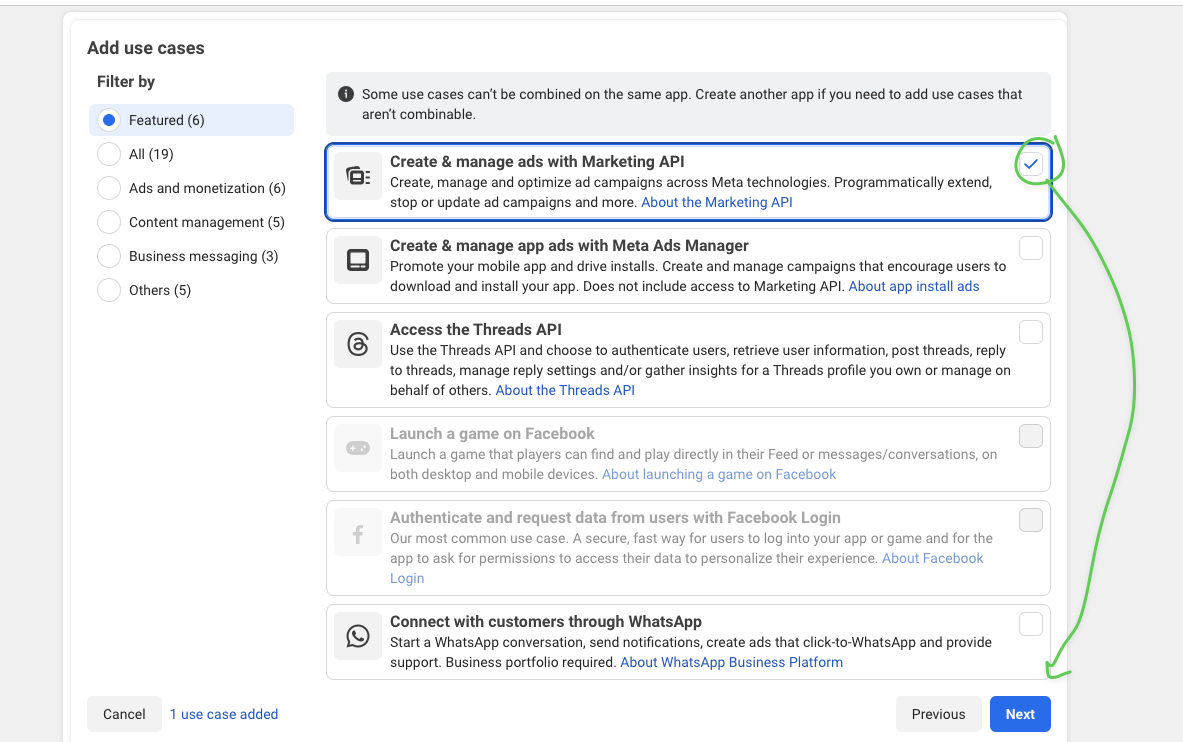
  1. Select use case: "Create & manage ads with Marketing API"
  2. Click Next
Select use case
Select "Create & manage ads with Marketing API" and click Next
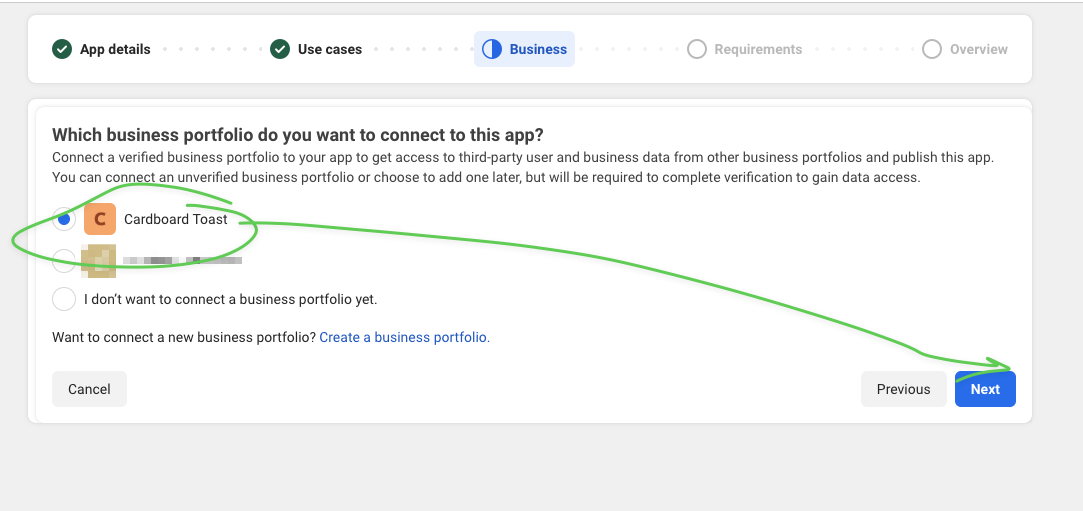
  1. Select your Business Portfolio
  2. Click Next
Select business portfolio
Select your business portfolio and click Next
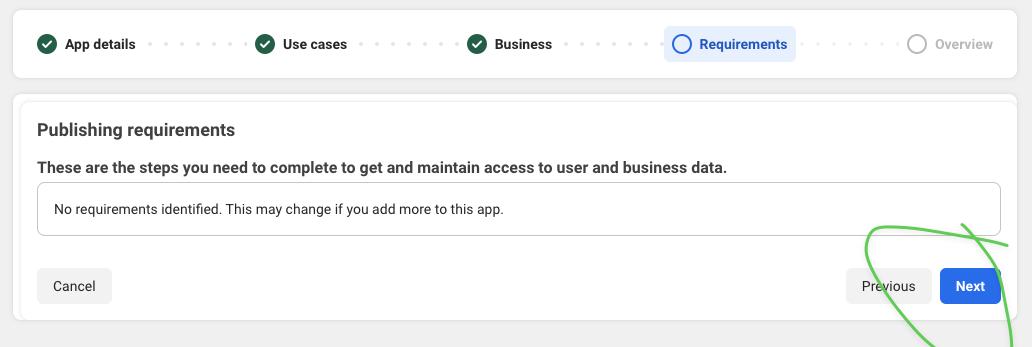
  1. Review requirements and click Next
Confirm requirements
Review requirements and click Next
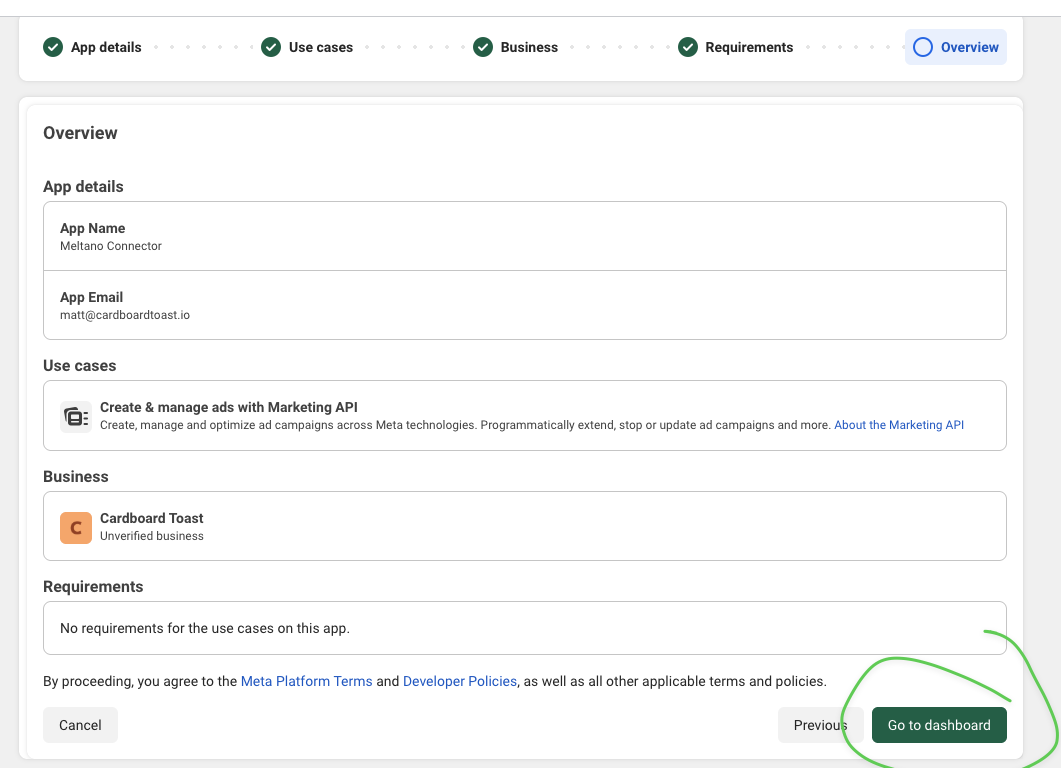
  1. Review the overview and click Go to dashboard
Go to dashboard
Click "Go to dashboard" to finish creating the app

4 Get App Credentials

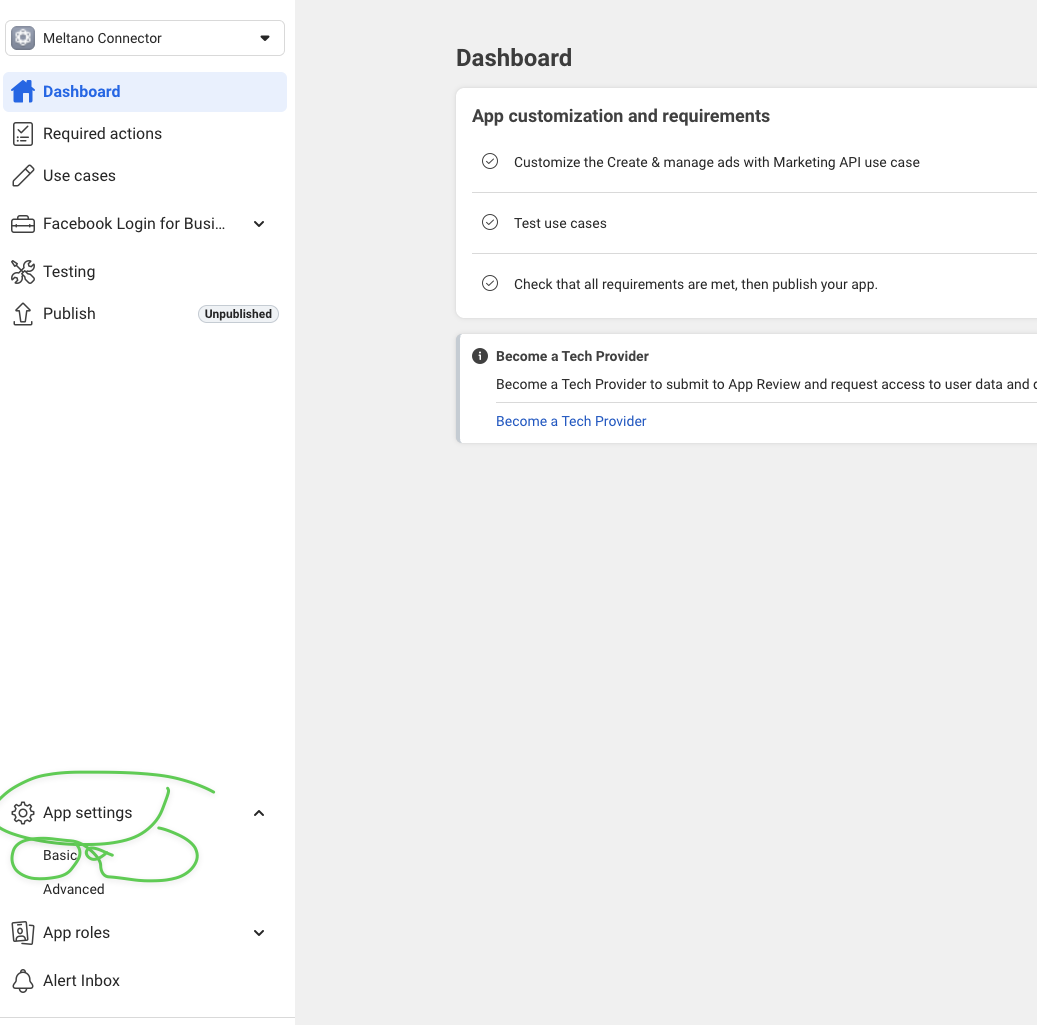
  1. In the app dashboard, click App settingsBasic
App settings basic
Go to App settings > Basic in the left sidebar
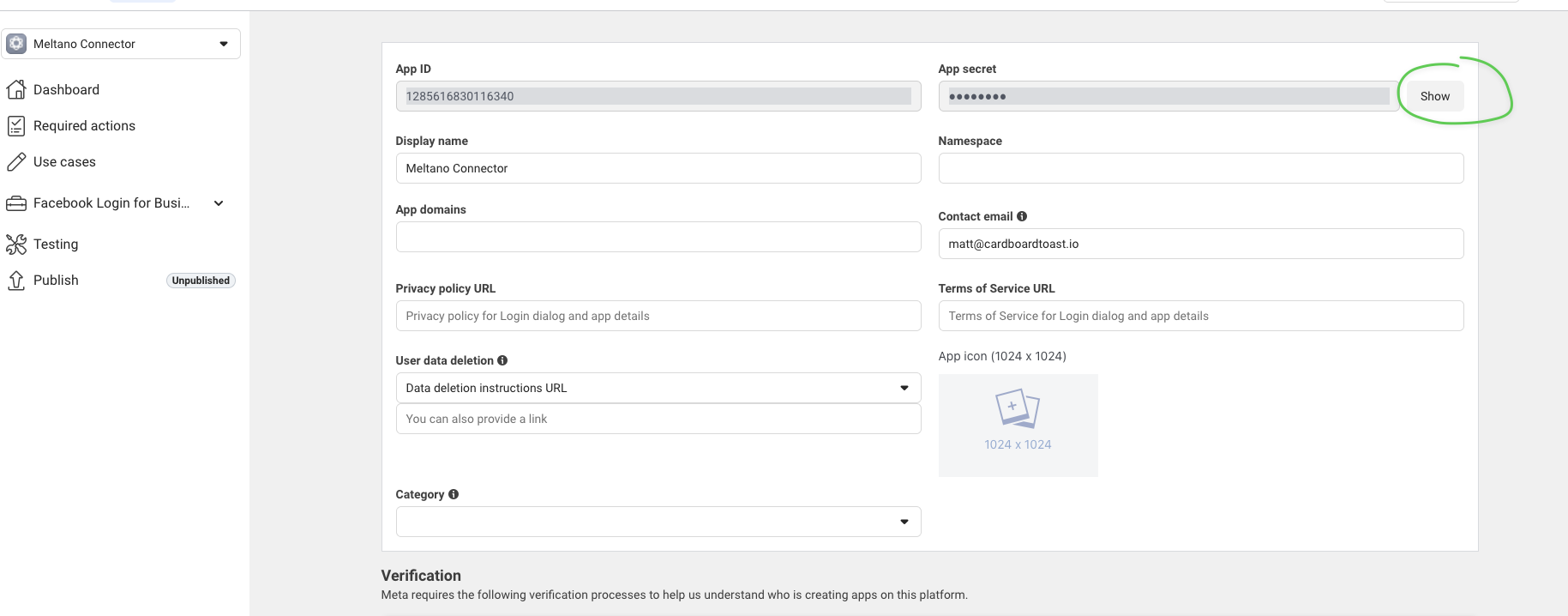
  1. Copy your App ID
  2. Click Show next to App secret, then copy it
Show app secret
Copy the App ID and click Show to reveal the App Secret
Keep These Secure

The App Secret should never be shared publicly or committed to version control.
5 Create a System User

  1. Go back to Business Settings
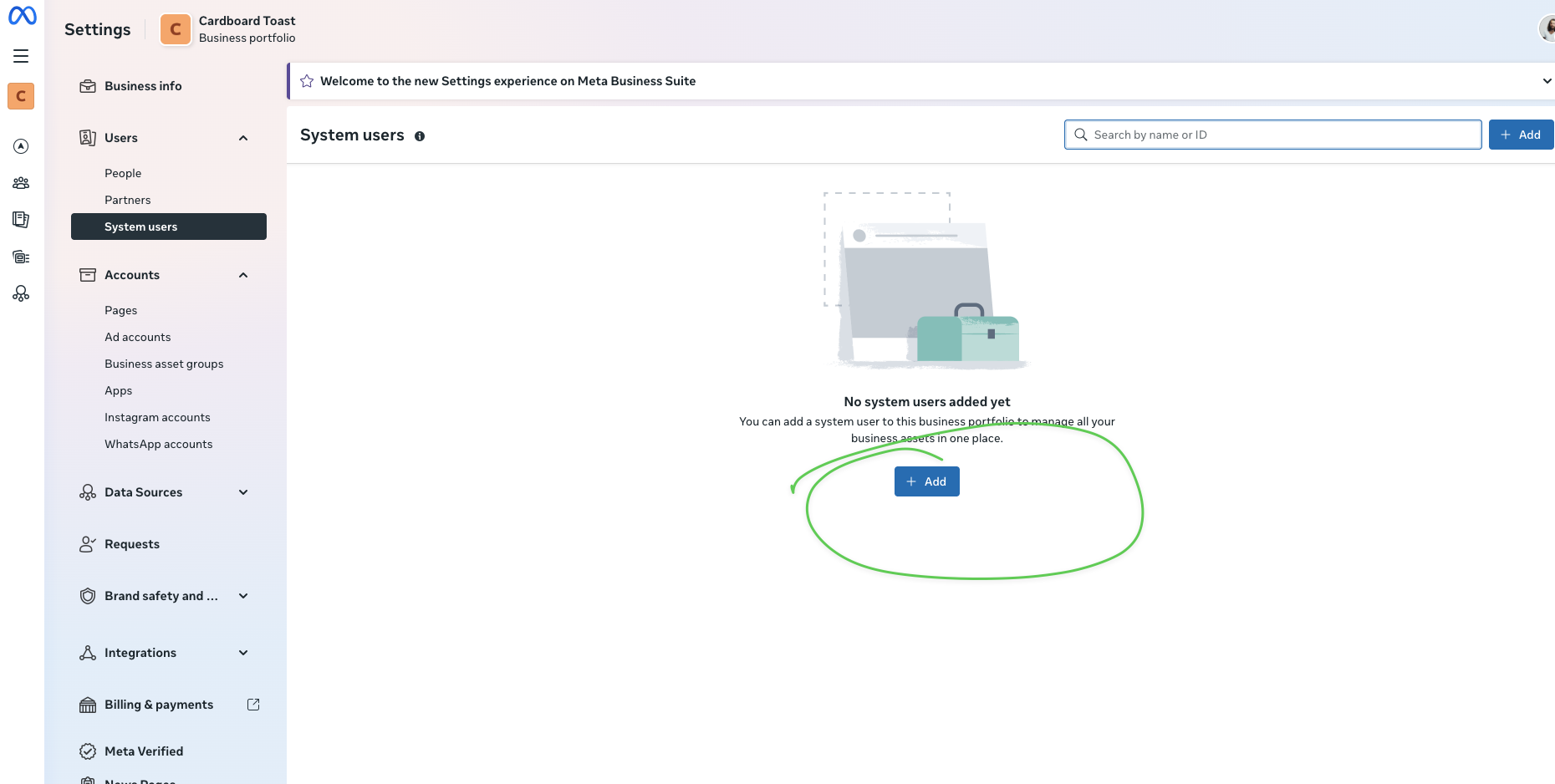
  2. Under Users, click System users
  3. Click + Add
Add system user
Click "+ Add" to create a new system user
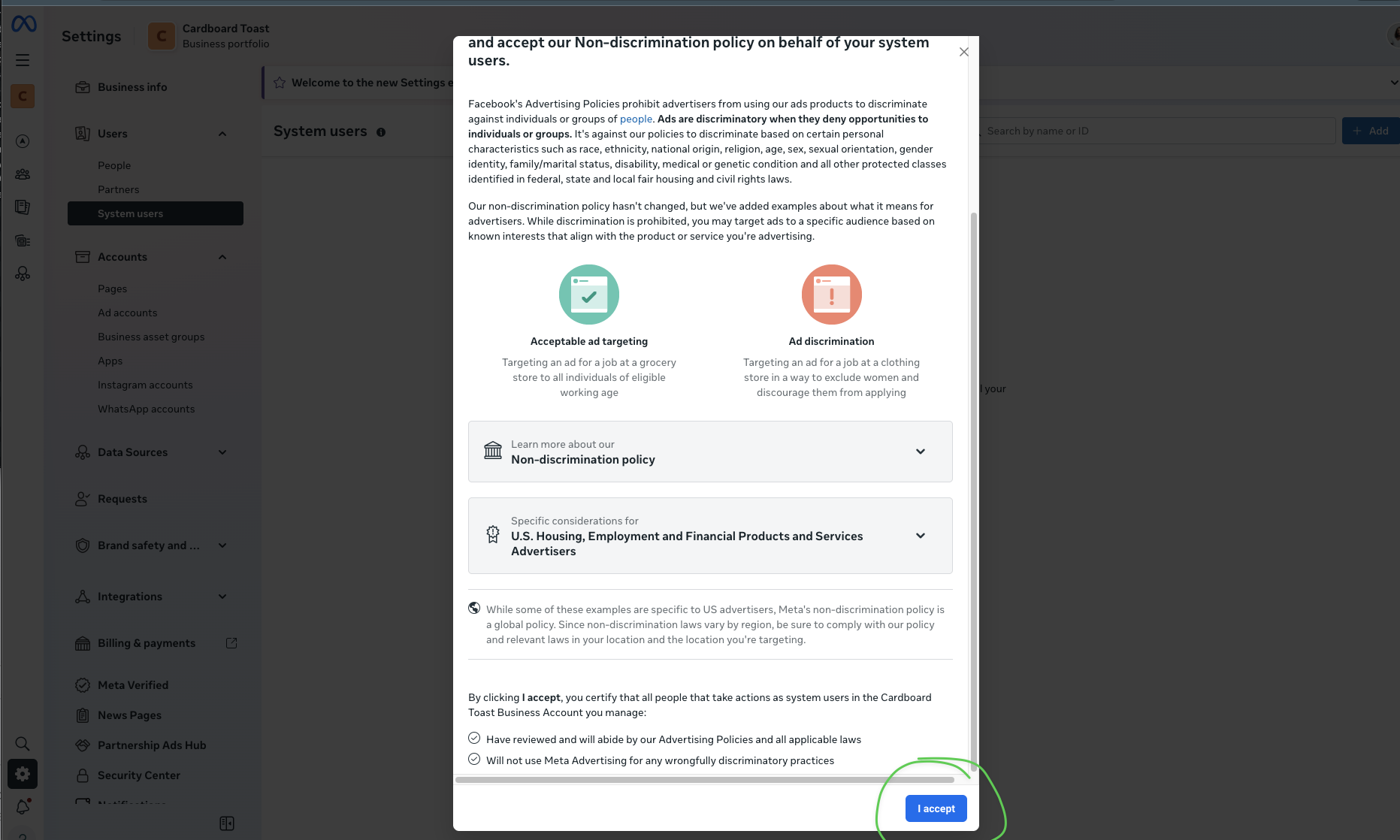
  1. Accept the Non-discrimination policy by clicking I accept
Accept policy
Review and click "I accept"
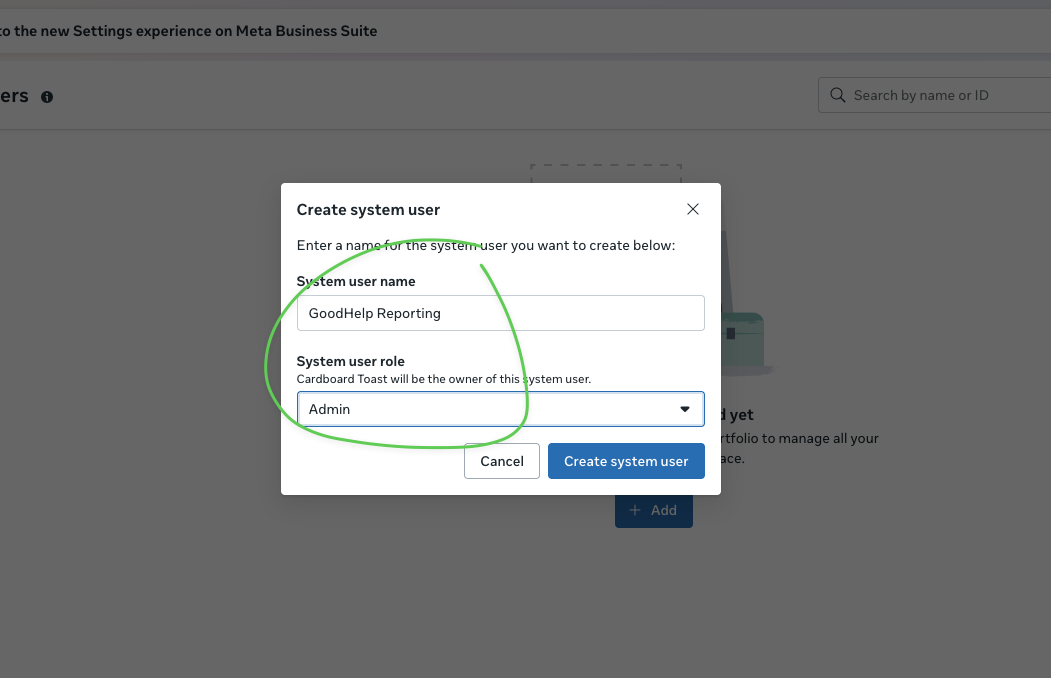
  1. Enter name: GoodHelp Reporting
  2. Set role to Admin
  3. Click Create system user
Set user details
Enter the system user name and set role to Admin

6 Assign Ad Account Access

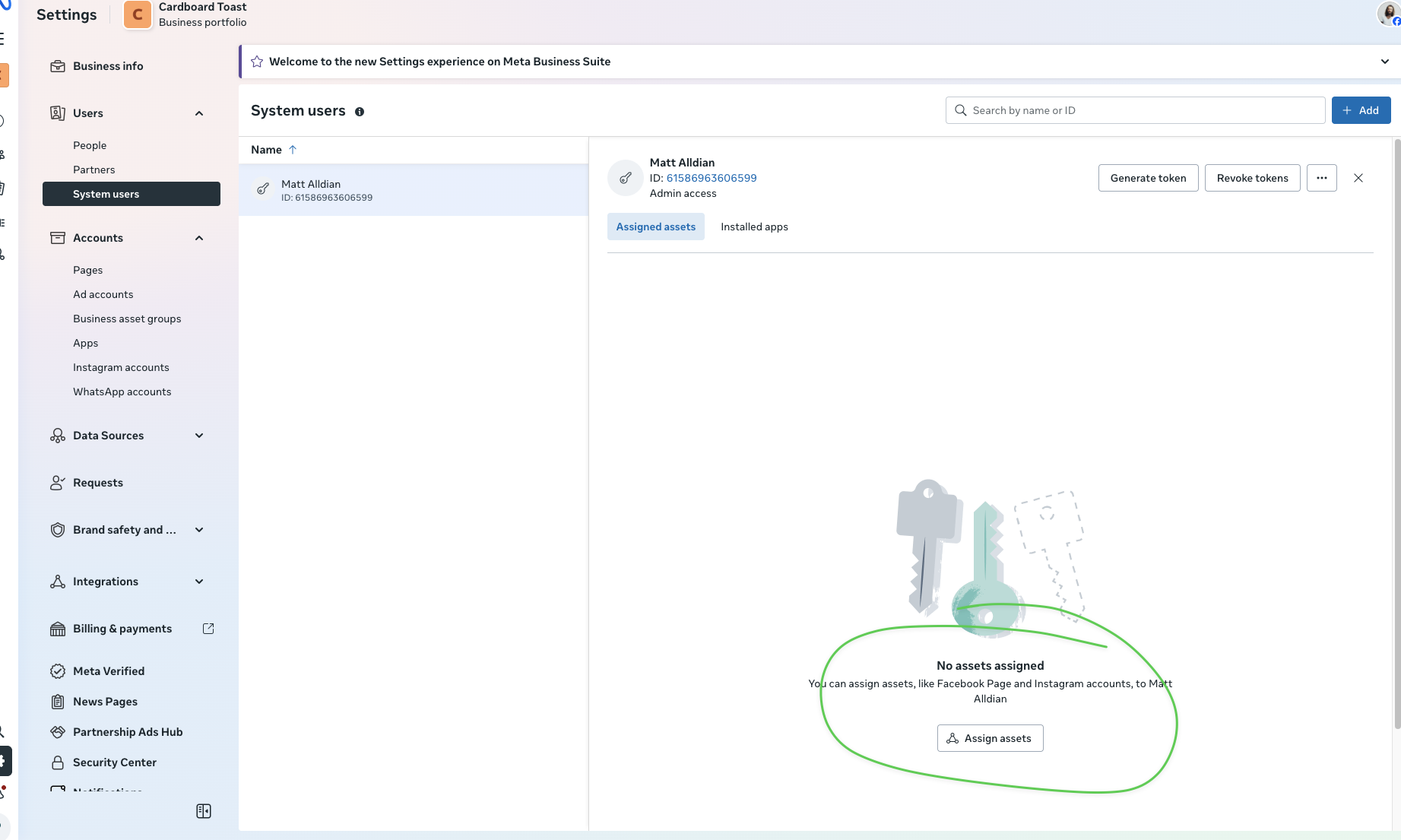
  1. Select the system user you just created
  2. Click Assign assets
Assign assets button
Click "Assign assets" to grant access to ad accounts
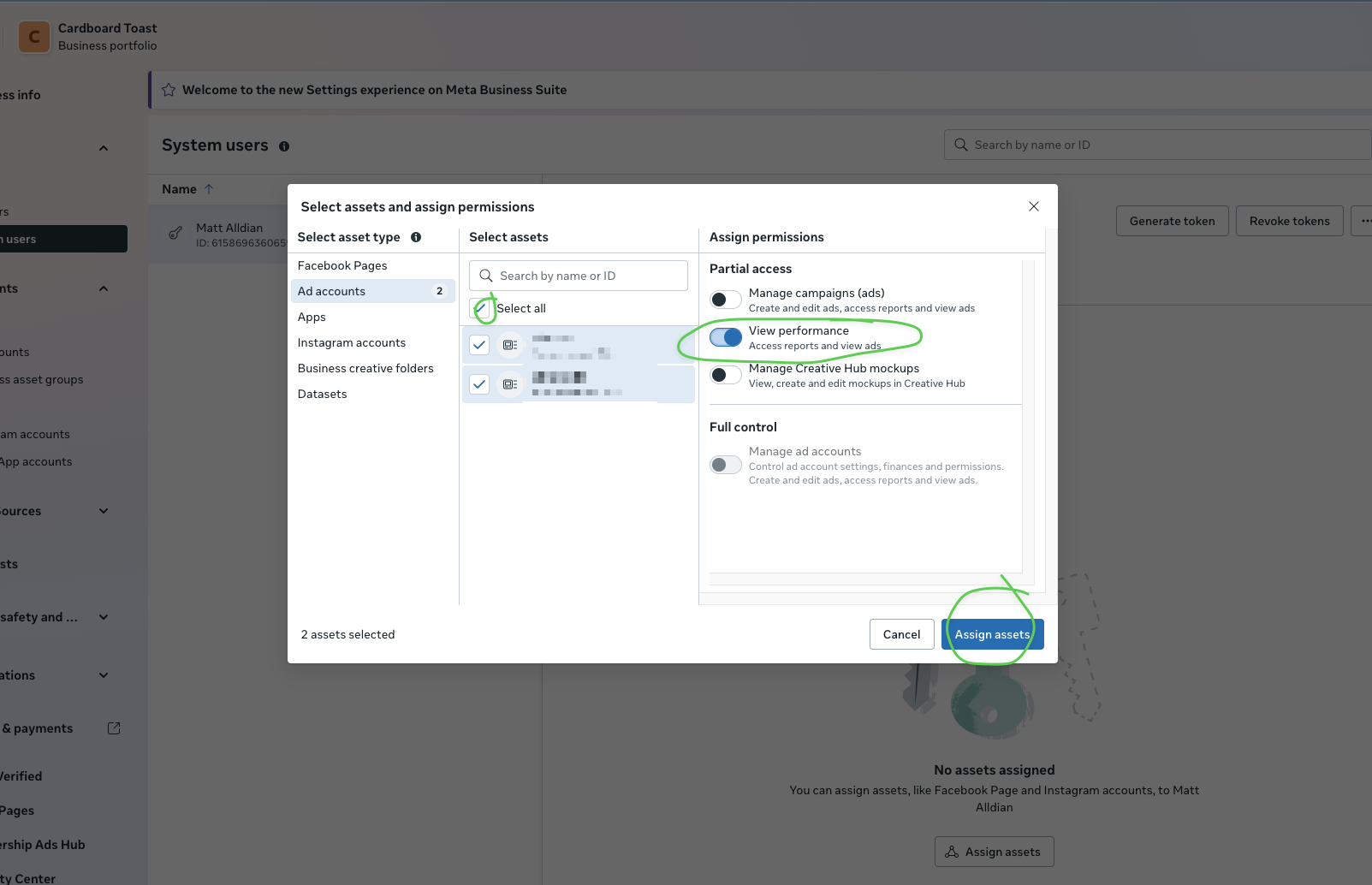
  1. Select Ad accounts from the left panel
  2. Check the ad account(s) you want to grant access to
  3. Enable View performance permission
  4. Click Assign assets
Select assets and permissions
Select Ad accounts, choose your accounts, enable "View performance", and click Assign assets

7 Generate Access Token

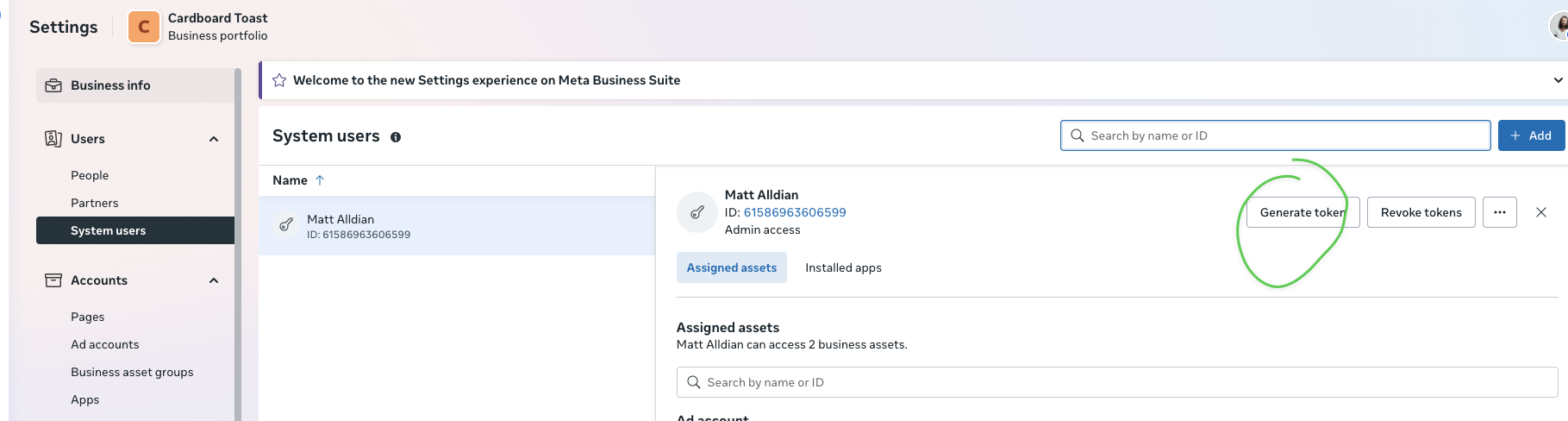
  1. Back on the System Users page, click Generate token
Generate token button
Click "Generate token"
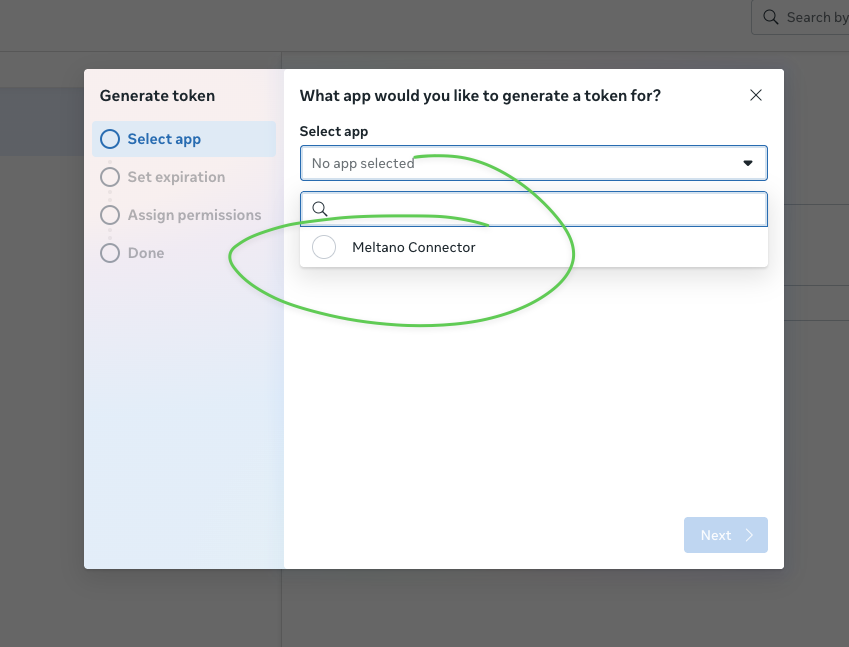
  1. Select your app from the dropdown
Select app
Select your app (e.g., "GoodHelp Reporting")
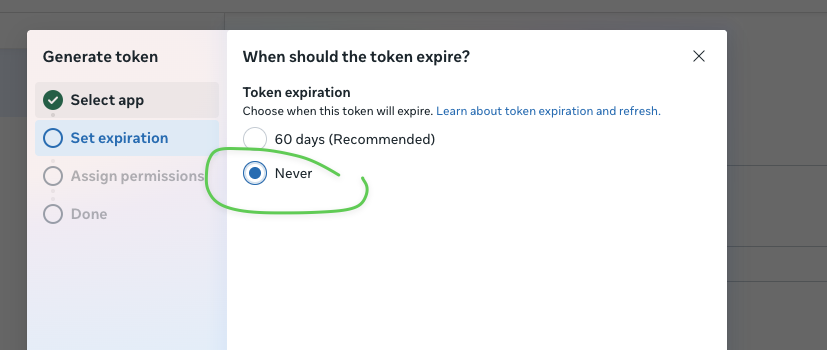
  1. Set token expiration to Never
Set token expiration
Select "Never" for token expiration
Note

If you see "No permissions available", you need to also assign the App as an asset to the system user.
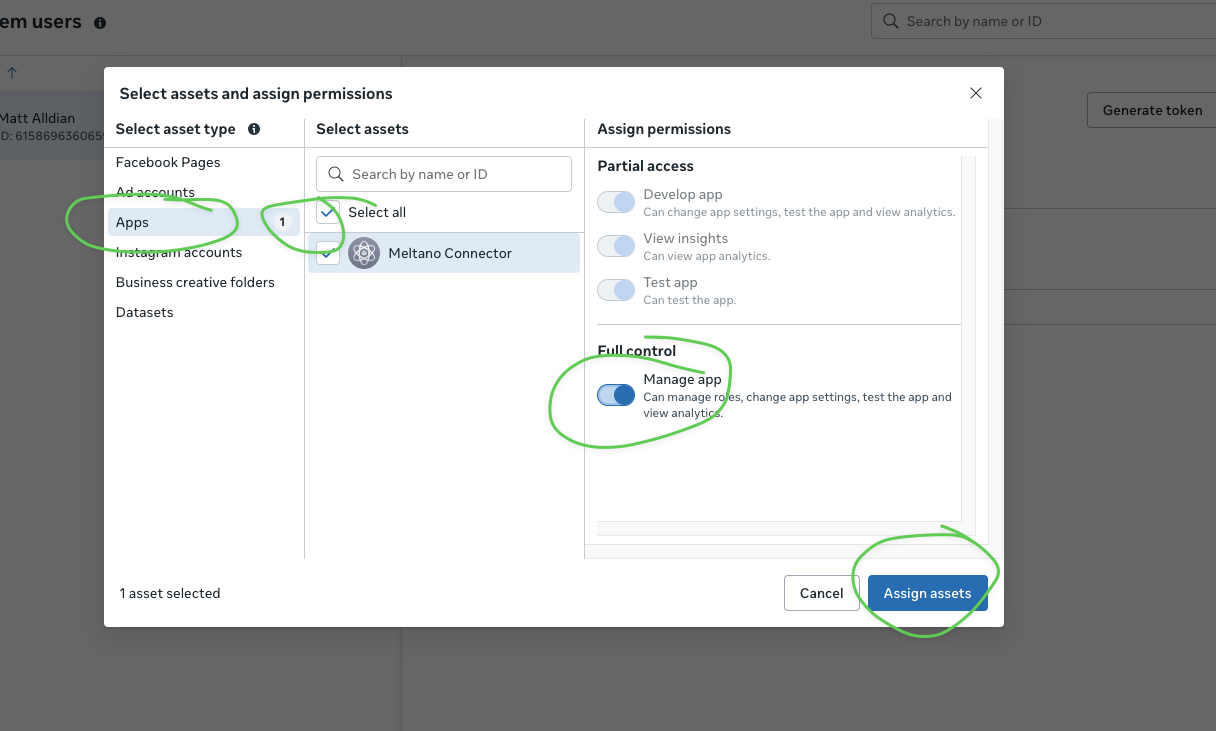
  1. If needed, go back and assign the App as an asset with Manage app permission
Assign app asset
If needed: Assign the App with "Manage app" permission
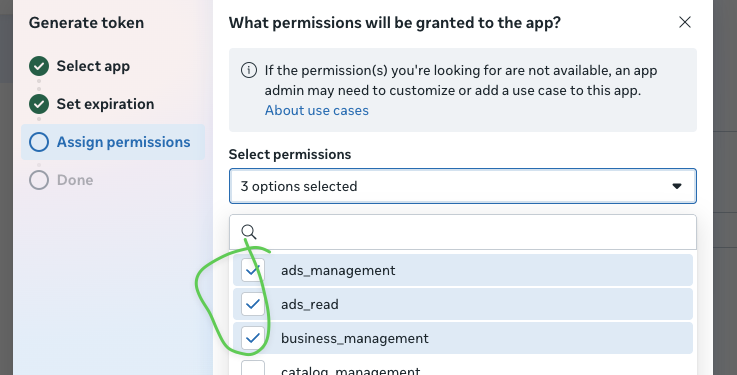
  1. Select the required permissions:
    • ads_management
    • ads_read
    • business_management
  2. Click Generate token
Select permissions
Select the required permissions
Critical

Copy the token immediately. You may not be able to see it again.
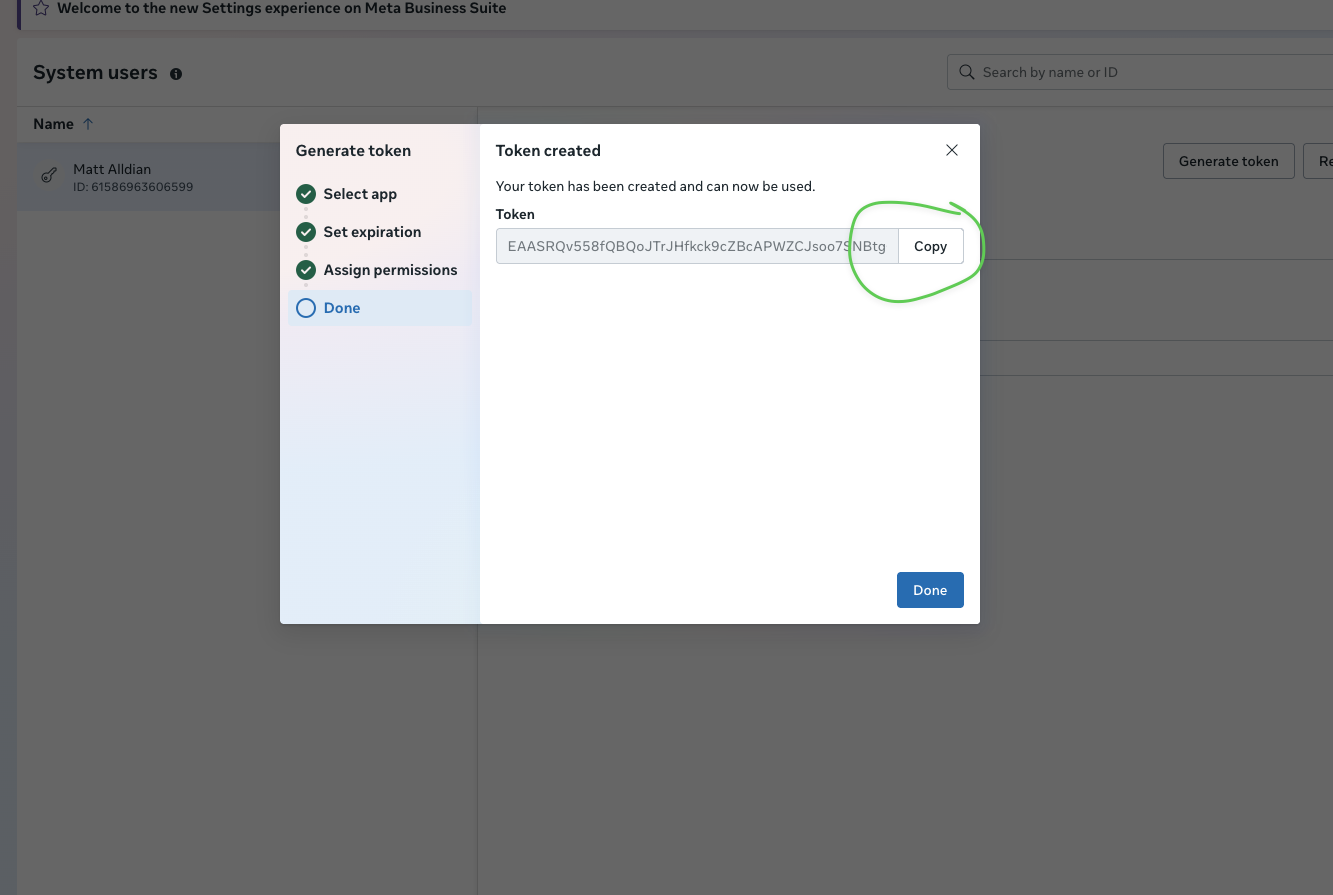
  1. Copy the token using the Copy button
Copy token
Click "Copy" to copy your access token and save it securely

8 Send Us Your Credentials

What We Need Where to Find It Example
App ID App Settings → Basic 1285616830116340
App Secret App Settings → Basic (click Show) ea576f3fa40ee23be...
Access Token From Step 7 above EAASRQv558fQBQ...
Ad Account ID Business Settings → Ad accounts 177503112104493
Slack

Slack Bot Setup

Install the Happy Robots reporting bot to receive daily summaries and alerts in your Slack channels.

What This Does

Installs a read-only reporting bot that posts daily summaries and alerts to your Slack channels. The bot cannot read your messages or access any data outside of what we explicitly send to it.

Quick Path api.slack.com/apps → Create New App → From scratch → OAuth & Permissions → Add Scopes → Install → Copy Token

1 Create a Slack App

  1. Go to api.slack.com/apps
  2. Click "Create New App"
Create New App button
Click the "Create an App" button
  1. Select "From scratch"
From scratch option
Select "From scratch" to manually configure your app
  1. Enter app name: GoodHelp Reporting Bot
  2. Select your workspace from the dropdown
  3. Click "Create App"
App name and workspace selection
Enter the app name and select your workspace

2 Configure Bot Permissions

  1. In the left sidebar, click "OAuth & Permissions"
OAuth & Permissions sidebar
Click "OAuth & Permissions" in the left sidebar
  1. Scroll to "Scopes" section
  2. Under "Bot Token Scopes", click "Add an OAuth Scope"
Add an OAuth Scope button
Click "Add an OAuth Scope" to add bot permissions
  1. Add these 4 scopes:
    • chat:write — Post messages to channels
    • chat:write.public — Post to channels without joining
    • commands — Add slash commands
    • channels:read — View basic channel info
All scopes added
All 4 required scopes added to Bot Token Scopes

3 Install App to Workspace

  1. Scroll up to "OAuth Tokens for Your Workspace"
  2. Click "Install to Workspace"
Install to Workspace button
Click "Install to Workspace"
  1. Review the permissions and click "Allow"
Permission approval screen
Review permissions and click "Allow"

4 Copy the Bot Token

Critical

Copy this token immediately and store it securely. You'll need to send this to Happy Robots.

  1. After installation, copy the "Bot User OAuth Token" (starts with xoxb-)
Bot token displayed
Copy the Bot User OAuth Token and save it securely

5 Get Signing Secret

  1. In the left sidebar, click "Basic Information"
Basic Information page
Click "Basic Information" in the left sidebar
  1. Scroll to "App Credentials"
  2. Click "Show" next to "Signing Secret"
  3. Copy the Signing Secret
Signing Secret
Click "Show" and copy the Signing Secret

6 Invite Bot to Channels

  1. Open Slack (app or web)
  2. Go to each client channel where you want reports
  3. Click the channel name at the top
  4. Go to "Integrations" tab
  5. Click "Add apps"
Add apps to channel
Click "Add apps" in the channel Integrations tab
  1. Search for and add "GoodHelp Reporting Bot"
Select bot to add
Find and add the GoodHelp Reporting Bot
Note

Repeat this for each channel where you want the bot to post reports.

7 Get Channel IDs

For each channel where you added the bot, get the Channel ID:

  1. Right-click on the channel name in the sidebar
  2. Click "Copy link"
  3. The URL looks like: https://workspace.slack.com/archives/C01ABCD2EFG
  4. The C01ABCD2EFG part is the Channel ID
Copy channel link
Right-click the channel and click "Copy link" to get the Channel ID

8 Send Us Your Credentials

What We Need Where to Find It Example
Bot User OAuth Token OAuth & Permissions page xoxb-1234-5678-AbCdEf...
Signing Secret Basic Information → App Credentials a1b2c3d4e5f6...
Channel IDs Right-click channel → Copy link C01ABCD2EFG
Workspace Name Your Slack URL goodhelp.slack.com
Security Notes

The bot is read-only and cannot access your messages. It can only post to channels where you've invited it. You can remove it anytime from Slack Admin → Manage Apps.